How to Restore Old Photos with AI: Scratches, Fading & Color

Somewhere in your family there's a box of photos that only exist once — grandparents' wedding, childhood holidays, prints that have spent decades fading in an album. AI photo restoration can now repair scratches, recover faded faces and even colorize black-and-white shots in about a minute. Here's how it works, and how to get results worth framing.
What AI restoration can fix
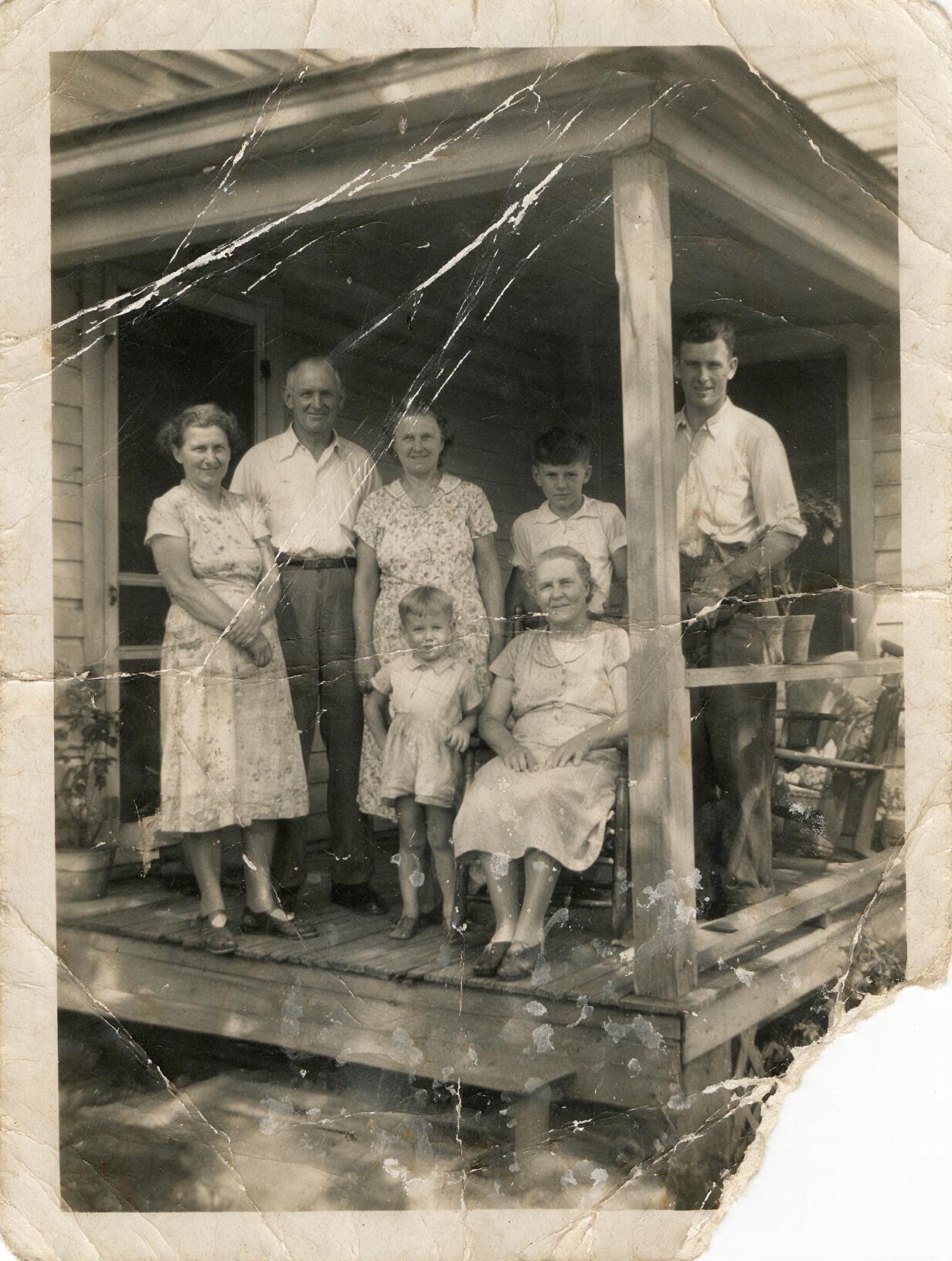
- Scratches, creases and spots — physical damage from decades of handling and storage.
- Fading and discoloration — washed-out contrast and the yellow or red casts old prints develop.
- Soft or damaged faces — the part of an old photo that matters most, and where modern models do their best work.
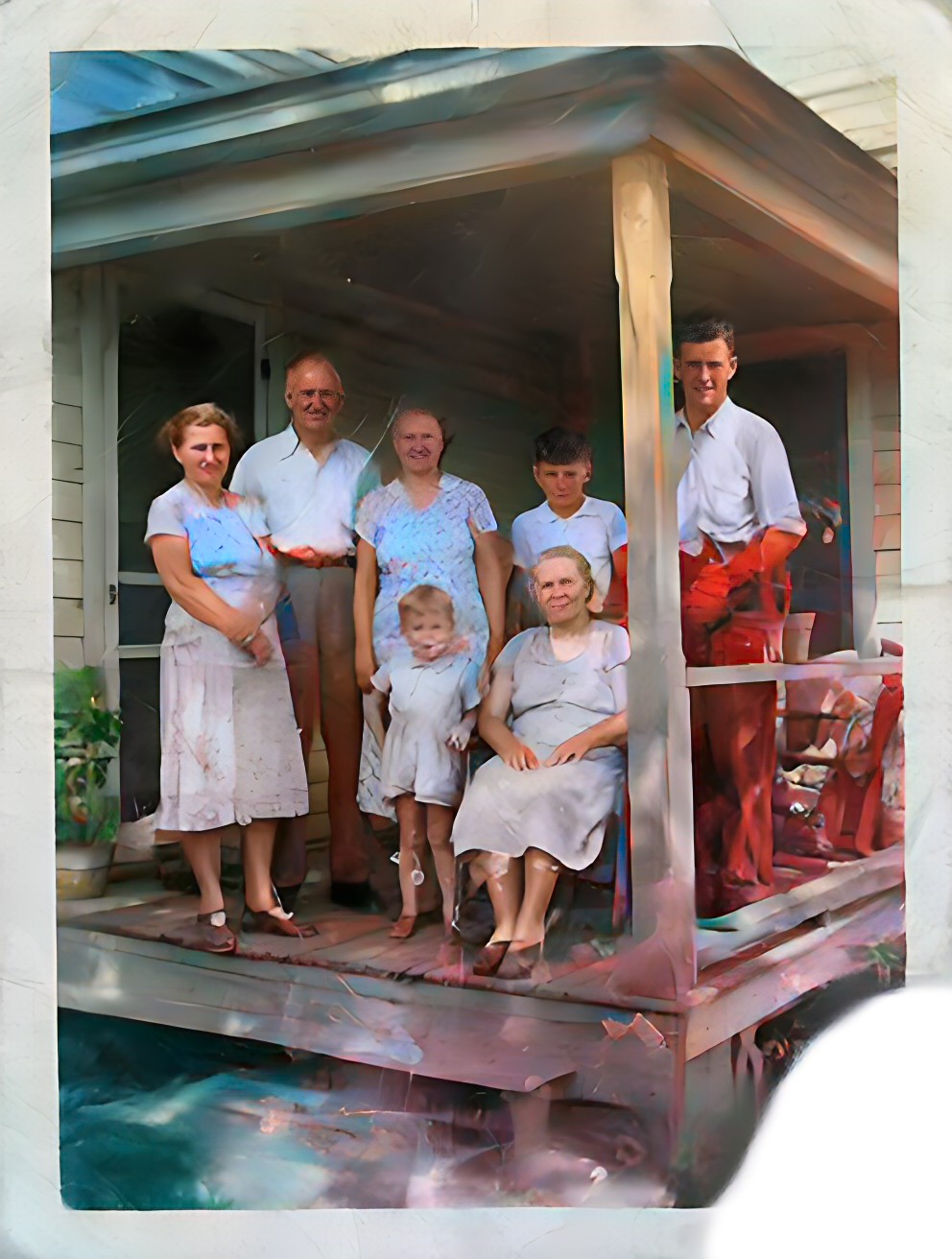
- Black-and-white photos — colorization that rebuilds plausible, natural colour.
How Hermosso's Restore tool works
The Restore tool runs a three-stage pipeline: it first repairs physical damage (scratches, creases, stains), then restores faces at high detail, and finally colorizes black-and-white images. A run costs 150 credits and takes about a minute; new accounts get 750 free credits on signup.
One important note: Restore is built for genuinely old or damaged photos. On a clean modern photo there's nothing to repair — so for a recent shot that's merely soft or small, use the AI upscaler instead.
Digitize first: scan or photograph your prints properly
Restoration quality starts with the digitization:
- Use a flatbed scanner if you can — around 600 dpi is a good target for prints.
- No scanner? Photograph the print in bright, indirect daylight. Avoid flash — it glares on glossy prints.
- Keep the camera parallel to the print so edges stay square, and fill the frame.
- Skip your phone's built-in "enhance" before uploading — give the AI the raw capture to work from.
A word on colorization
Colorized results are plausible reconstructions, not recovered truth — the AI infers natural skin tones, sky blues and era-appropriate clothing colours, but it can't know that the dress was actually green. Treat the colour version as a beautiful interpretation alongside the original, not a replacement for it.
Make it a family project
Restoration works best as a batch effort rather than one photo at a time. Pick the ten or twenty prints that matter most — the ones people ask about at family gatherings — and digitize them in a single sitting. While you're at it, write down what you know: who's in the photo, roughly when and where it was taken. That context is as fragile as the print itself, and it's what turns a restored image into a piece of family history rather than just a cleaner picture. Sharing the restored set in a family group chat tends to surface stories — and more photos — you didn't know existed.
What to do with restored photos
Print them, and share them with family while the stories behind them are still known. And if you want to go a step further, you can even animate a restored portrait into a short video clip — a striking way to bring family history to life.
For physical keepsakes, order proper prints rather than office-printer copies — the restored file has the detail to support it. A framed before-and-after pair makes a genuinely good gift, and a shared digital album lets the whole family keep copies that won't fade again.
Try it on your own photos
Upload a few selfies, and Hermosso trains a private AI model of you — then generates studio-quality photos in any style. Your first credits are free.
Create your AI photos →Frequently asked questions
Can AI really restore old, damaged photos?
Yes. Modern restoration pipelines repair scratches and creases, correct fading and discolouration, and rebuild faces at high detail. Hermosso's Restore runs a three-stage repair, face-restore and colorize pipeline in about a minute for 150 credits.
Can AI colorize black-and-white photos?
Yes — colorization is built into the Restore pipeline. The colours are plausible, natural-looking reconstructions rather than the original scene's exact colours, so keep the original alongside the colorized version.
How do I digitize old prints for restoration?
A flatbed scanner at around 600 dpi is ideal. With a phone, shoot in bright indirect daylight without flash, keep the camera parallel to the print, and fill the frame.
Should I use restoration or an upscaler?
Use Restore for genuinely old, scratched, faded or black-and-white photos. For modern photos that are just blurry or low-resolution, use the AI upscaler — on a clean modern photo there is nothing to repair.
How much does AI photo restoration cost?
Hermosso charges 150 credits per restoration, and new accounts get 750 free credits on signup — enough to restore several family photos free. Plans start at $9/month for 5,000 credits.