How to Animate Old Family Photos (Deep Nostalgia Alternatives)

A few years ago, MyHeritage's Deep Nostalgia went viral by making old family portraits blink and smile — and introduced millions of people to the idea of animating old photos. The technology has moved on. Today you can animate a family photo into a natural 5-second clip, or even have the person in it speak, without being tied to a genealogy platform (which typically bundles its animator with a paid subscription — check their site for current terms). Here's how.
What "animating" an old photo means in 2026
Early tools like Deep Nostalgia applied a fixed set of pre-recorded gestures — a blink, a tilt, a smile — to a face. Modern image-to-video models go further: they generate new motion for the whole scene, guided by an optional text prompt, so the result looks like a short piece of footage rather than a puppeted face. And talking-photo tools add a second dimension: speech, with lipsync to a script you write.
Step 1: Restore the photo first (if it needs it)
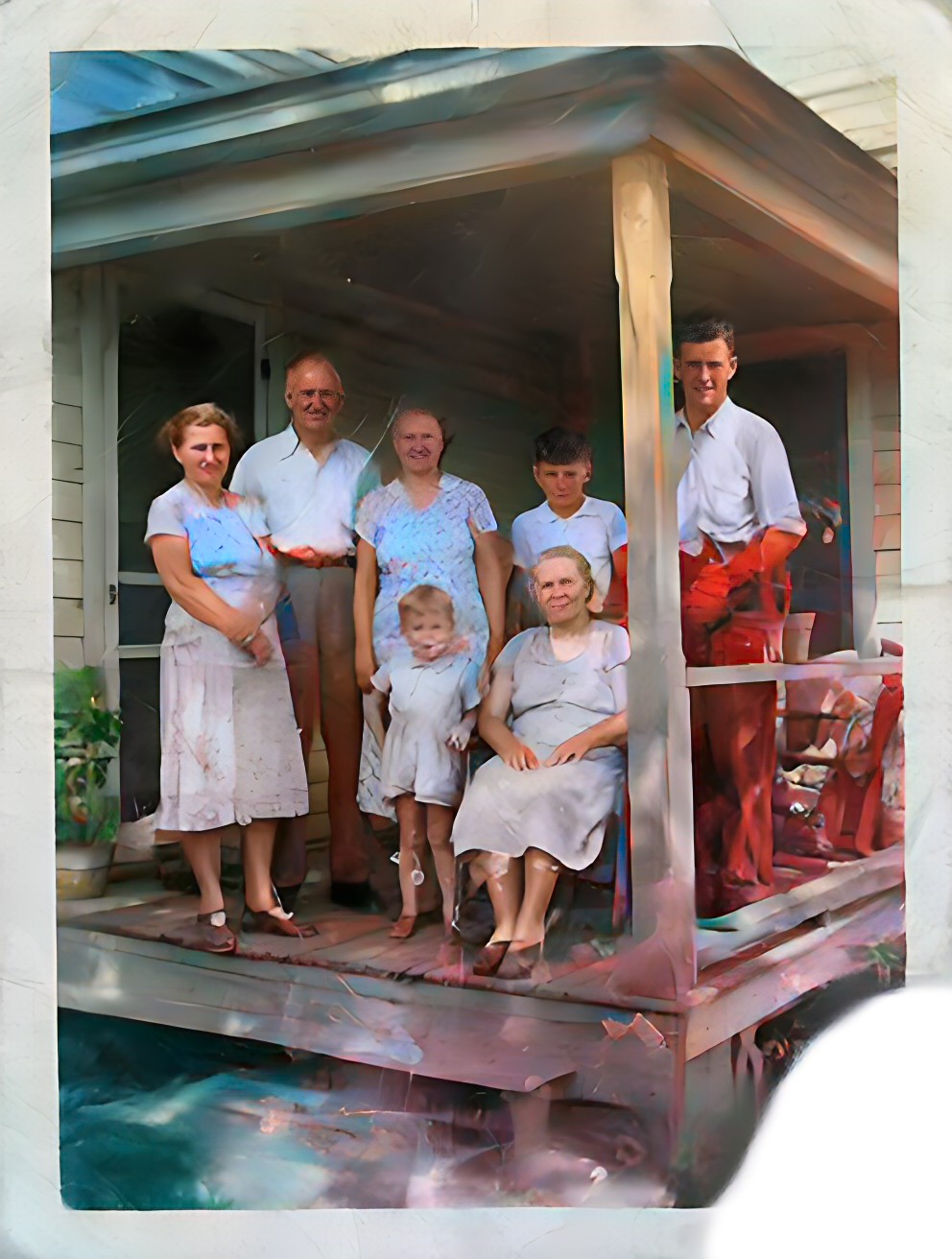
Old photos usually carry scratches, fading or soft faces — and video models amplify whatever they're given. If the photo shows its age, run it through the Restore tool first: it repairs damage, restores faces and can colorize black-and-white shots. Animating the restored version gives a dramatically cleaner result.
Step 2: Animate it into a video clip
- Upload the photo to the Photo to Video tool.
- Describe the motion — "she smiles gently and looks toward the camera" — or leave the prompt empty for a natural default.
- Generate. You get a 5-second clip: 720p for 250 credits on the Standard tier, 1080p for 500 credits on Premium. New accounts get 750 free credits.

Which photos animate best
- Clear, front-ish faces. A portrait where the face is visible and reasonably large in the frame gives the model the most to work with.
- Simple backgrounds. Plain backdrops keep the motion focused on the person.
- One or two people. Group shots animate unevenly — crop to the person you care about.
- Sharp beats artistic. A crisp scan of an ordinary portrait outperforms a dreamy, soft-focus one.
Step 3 (optional): Make them speak
This is where Hermosso goes beyond what Deep Nostalgia-style tools offer. The Video Studio turns a photo into a talking video: type a script, pick a voice — or clone a real one — and the photo speaks your words with synced lips. Families use it to pair a grandparent's portrait with a recorded family story; others use it for a birthday message from a childhood photo. It's a genuinely different artefact from a silent animation.
What it costs
Restoring a photo is 150 credits; animating it is 250 credits at 720p or 500 at 1080p; a talking video is billed per second of output (100–200 credits depending on tier). New accounts get 750 free credits — enough to restore and animate a first photo free — and plans start at $9/month for 5,000 credits. If you're weighing this against a genealogy platform's animator, check their site for current pricing — it's typically bundled into a broader subscription.
A note on doing this respectfully
Animating family photos can be moving — and occasionally unsettling for relatives who aren't expecting it. Stick to your own family photos or images you have permission to use, share privately before posting publicly, and be thoughtful with photos of people who have passed: the goal is a tribute, not a shock.
Try it on your own photos
Upload a few selfies, and Hermosso trains a private AI model of you — then generates studio-quality photos in any style. Your first credits are free.
Create your AI photos →Frequently asked questions
What is the best Deep Nostalgia alternative?
Modern image-to-video tools animate old photos with generated, prompt-guided motion rather than fixed gesture presets. Hermosso's Photo to Video tool turns an old portrait into a 5-second clip (720p or 1080p), and its Video Studio can make the person speak a script — something Deep Nostalgia-style tools don't offer.
How do I animate an old family photo?
Scan or photograph the print in good light, restore it first if it's scratched or faded, then upload it to the Photo to Video tool and generate a 5-second clip. You can optionally describe the motion you want.
Can I make an old photo talk?
Yes. Hermosso's Video Studio creates talking videos from a photo: type a script, choose a voice or clone a real one, and the face in the photo speaks with synced lips.
Should I restore an old photo before animating it?
If the photo is scratched, faded or black-and-white, yes. Video models amplify existing damage, so running the Restore tool first — repair, face restoration and colorize — gives a much cleaner animation.
How much does it cost to animate a photo?
A 5-second clip costs 250 credits at 720p or 500 credits at 1080p. New accounts get 750 free credits on signup, and plans start at $9/month for 5,000 credits.